

Rename Flow | Official Documentation
1. Introduction
Welcome to Rename Flow! This tool was built to eliminate the tedious process of organizing Unity projects. Whether you are standardizing hundreds of imported art assets, cleaning up a messy scene hierarchy, or mapping external names via CSV, Rename Flow handles it instantly and safely.
Features:
Dual-Scope Targeting: Rename Project Assets or Scene Hierarchy GameObjects.
Data-Driven Naming: Map external names directly via CSV.
Smart Safety Engine: Real-time conflict detection and full Undo support.
Workflow Presets: Save and load your custom rulesets as project assets.

2. Interface Overview
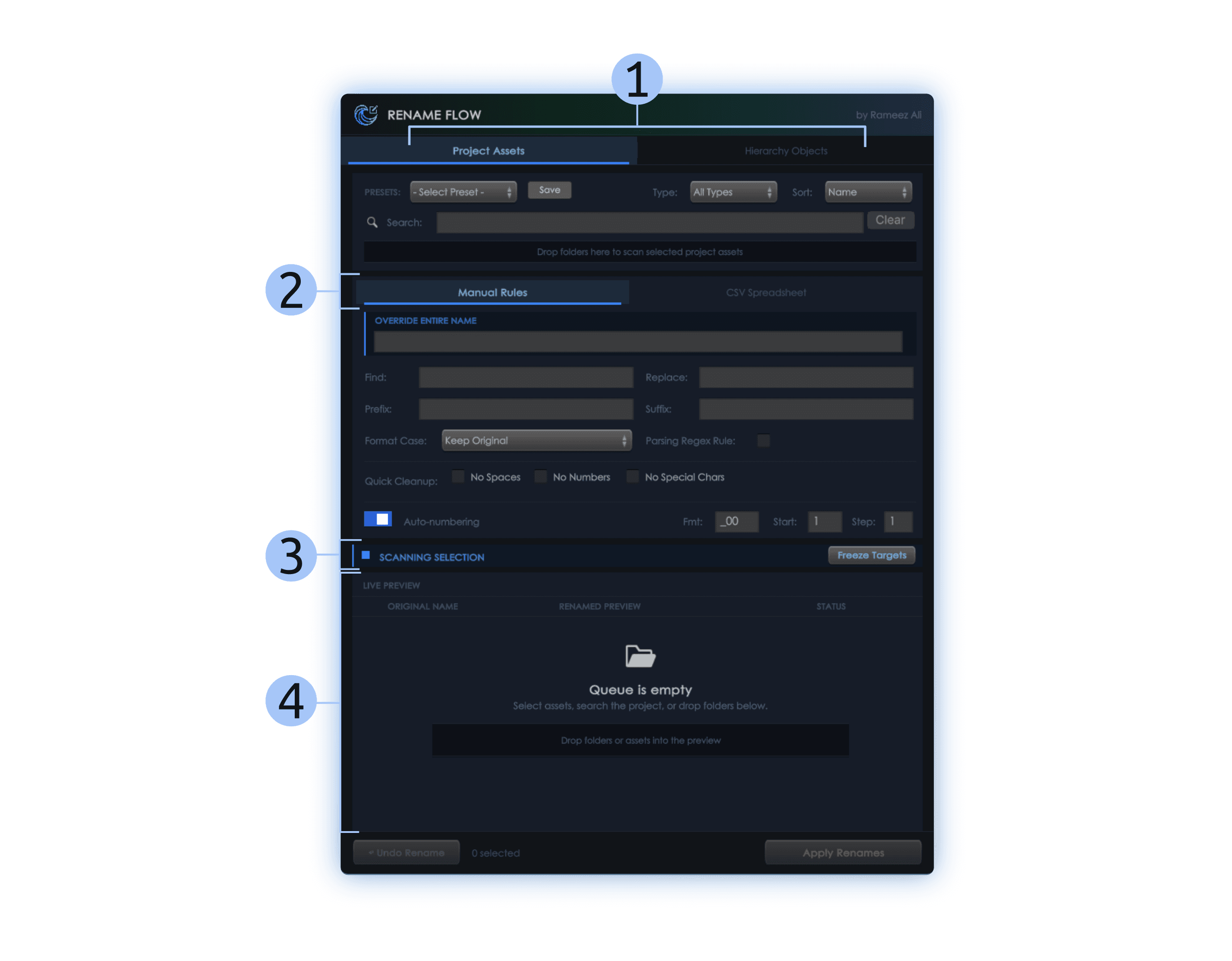
Scope & Filters: Define where the tool looks (Project, Hierarchy, or Global Search) and filter by specific asset types (e.g., Textures, Audio).
Rule Engine: Toggle between Manual string manipulation and CSV Spreadsheet mapping.
Execution Bar: Lock your selection, verify the status of the queue, and trigger the rename operation.
Live Preview: A real-time, color-coded diff view showing exactly how your assets will change before you apply them.
3. Getting Started
To open the Rename Flow window, navigate to the top Unity menu bar and select:
Tools > Rameez Ali > Rename Flow
Selecting Targets
Manual Selection: Click any assets in the Project or Scene; the Live Preview will update instantly.
Folder Drop: Drag & drop an entire folder directly into the tool's drop zone to scan its contents.
Global Search: Use the search bar to find assets across your entire project by name.
4. Naming Rules (Manual Input)
The Manual Rules tab gives you complete control over string manipulation.
Override Entire Name: Completely replaces the original asset name with a new base name.
Find & Replace: Replaces specific words or characters.
Regex Support: Toggle the Regex checkbox to use advanced search patterns.
Prefix & Suffix: Append text to the very beginning or end of the target names.
Format Case: Standardize capitalization with one click:
LowerCase (e.g., hero_mesh)
UpperCase (e.g., HERO_MESH)
CamelCase (e.g., heroMesh)
SnakeCase (e.g., hero_mesh)
Quick Cleanup
One-click toggles to instantly sanitize messy asset packs:
No Spaces: Removes all empty spaces.
No Numbers: Strips all numerical digits.
No Special Chars: Removes brackets, symbols, & punctuation (keeps underscores and dots).
Auto-Numbering
Easily serialize lists of objects (e.g., Enemy_01, Enemy_02).
Fmt (Format): Define the visual structure (e.g., _00 creates _01, _02).
Start & Step: Choose which number to begin counting from, and how much to increase by per item.
5. Naming Rules (CSV Spreadsheet)
For data-driven workflows, you can rename assets based on an external spreadsheet.
Formatting Your CSV
Your CSV file must have at least two columns.
Column 1: The identifier (either the Item Index or the Original Asset Name).
Column 2: The New Name you want to apply.
CSV Settings
Match By (Index): Links row 1 to the first selected item, row 2 to the second, etc.
Match By (Original Name): Searches your selection for an asset matching the exact name in Column 1, ignoring the order in which you selected them.
Ignore Header: Skips the first row of your CSV if you have titles like "ID" and "Name".
Simply drag and drop your .csv (or .txt) file into the Asset slot to load it. The tool will automatically validate the rows and display a success message.
6. Execution & Safety
Rename Flow is built with a robust safety engine to ensure your project never breaks during mass operations.
Understanding the Live Preview:
Ready (Green): The operation is valid. Changes are highlighted with a Rich Text arrow (→).
Conflict (Red): Conflicts occur if a file name already exists, if a duplicate is generated in the batch, or if a name contains invalid OS characters.
Excluded (Gray): Use the checkboxes next to any row to manually exclude it from the batch.
Engine Safeguards:
Full Undo: Click the ↩ Undo Rename button to instantly revert the entire batch.
Prefab Protection: Scene renames automatically register property modifications to preserve Prefab instance links.
Deep Sorting: When renaming folders alongside their contents, the engine processes the deepest files first to prevent Unity pathing errors.
Script Warnings: A safeguard warning will appear if you attempt to rename a C# .cs file, reminding you to update the internal class name.
7. Presets
1. Where They Go
They must be saved in this specific folder generated by your script:
Assets/Rameez Ali/Rename Flow/CustomPresets/
2. How to Make Them (The Smart Way)
Open Rename Flow Pro.
Set up a common, highly useful rule (e.g., Check No Spaces, set to CamelCase).
Click Save button, name it (e.g., Clean_CamelCase), and click the green checkmark (✔).
Repeat for 3-4 common workflows (e.g., Remove_Numbers, Standard_Suffix).
3. Exporting
When you right-click the Rameez Ali folder to Export Package, just make sure the CustomPresets folder and those new .asset files are checked.
8. Support & Contact
If you encounter any bugs, have feature requests, or need help integrating Rename Flow into your specific studio pipeline, please reach out!
Email: ramizali397@gmail.com
Thank you for using Rename Flow. If this tool optimized your workflow, please consider leaving a review on the Unity Asset Store!